
How to Encrypt Your Internet Traffic: A Practical Step-by-Step Guide
Learn how to encrypt your internet traffic layer by layer: HTTPS, encrypted DNS, a VPN or Tor, secure email and messaging, plus how to verify each step works.
How to Encrypt Your Internet Traffic: A Practical Step-by-Step Guide
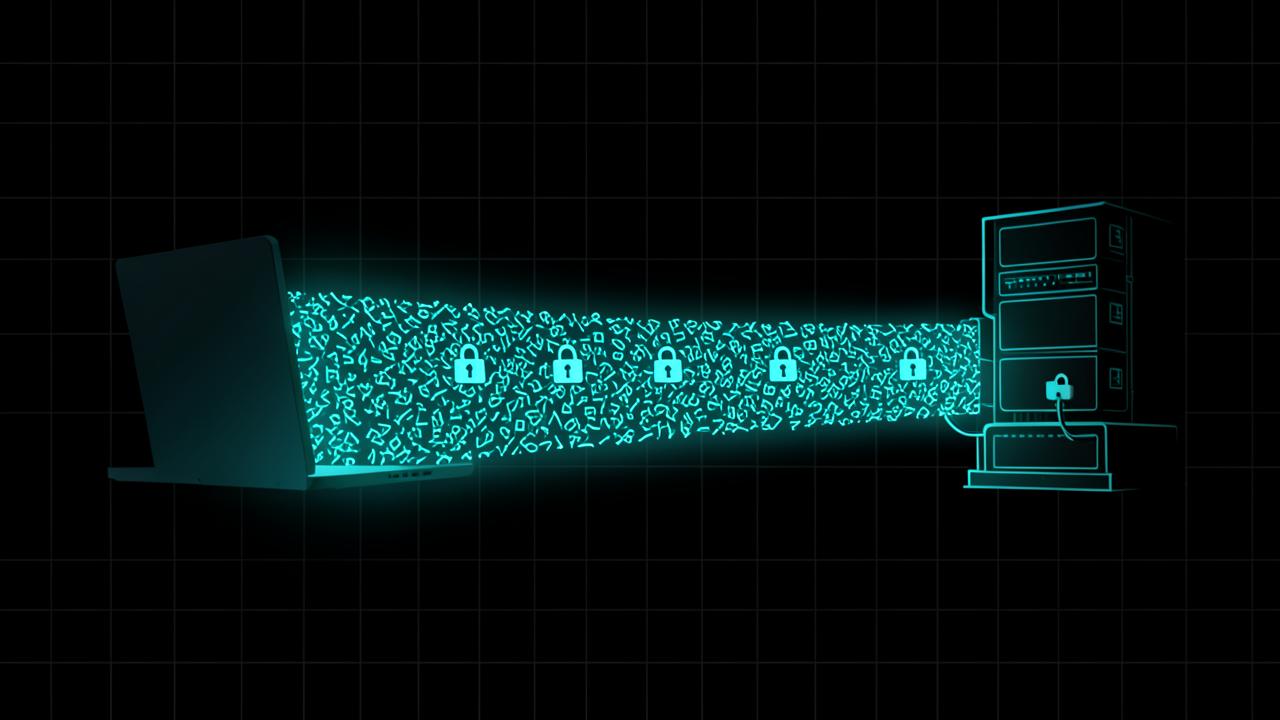
How to encrypt your internet traffic is really four questions, not one, and they are best answered in order: the web page, the DNS lookup, the network path, and the content of your messages. Fix them in that sequence and each step is quick.
The reason order matters is that each layer hides something different. HTTPS conceals what you send to a site but not which site it is; encrypted DNS conceals the domain lookup; a VPN or Tor conceals the destination from your local network; end-to-end encryption keeps the service itself from reading your content.
How to encrypt your internet traffic, layer 1: force HTTPS everywhere
Transport Layer Security is what turns readable requests into unreadable ciphertext between your browser and a website, and modern connections use TLS 1.3, which trimmed weak options and reduced handshake round-trips compared with earlier versions.
The industry has been closing the last gaps. Google's Chrome Security team announced that with the release of Chrome 154 in October 2026 Chrome will change its defaults to enable 'Always Use Secure Connections', asking for the user's permission before the first insecure connection to a public site. You do not have to wait for it — every major browser already offers an HTTPS-only setting today.
- Turn on your browser's HTTPS-only or 'always use secure connections' mode.
- Treat a certificate warning as a stop sign, not a prompt to click through.
- Check the certificate on any site handling money or credentials — our SSL checker shows the issuer, validity dates and configuration, and the background is in what is an SSL certificate.

Layer 2: switch on encrypted DNS
Before your browser can load a page it asks a resolver to translate the domain name into an IP address. Traditionally that question travels in plain text, so your network operator can log every domain you visit even though the pages themselves are encrypted.
DNS over HTTPS and DNS over TLS wrap that lookup in encryption. Browsers expose it as a 'secure DNS' setting and operating systems support it at the system level, which is the better place to enable it because it covers apps as well as browsing. If the mechanics are unfamiliar, what is DNS and how it works is the primer.
One honest caveat: encrypted DNS moves visibility of your lookups from your network operator to your chosen resolver. Pick a resolver whose logging policy you have actually read.
Layer 3: encrypt the network path with a VPN or Tor
Layers one and two still leave your local network able to see which servers you contact. Closing that means tunnelling everything.
A VPN
A VPN encrypts all traffic from your device to the VPN server, then forwards it onward. Your local network and provider see only an encrypted connection to the VPN. Modern clients typically use WireGuard or OpenVPN, and the decision that matters is not the protocol but the operator, since they can see what your provider previously could. What is a VPN and do you need one covers how to judge that, and the best VPN for public WiFi covers the case where it helps most.
Tor
Tor spreads that trust across multiple relays so no single one knows both origin and destination. It is slower, and it is the right tool when the question is anonymity rather than convenience. Which browser you pair it with matters too — see our comparison of the best privacy browsers in 2026.
Layer 4: end-to-end encrypt your messages and files
The first three layers protect data in transit between you and a server. They do nothing about the server reading it. End-to-end encryption keeps the keys on the endpoints so the provider carries ciphertext it cannot open.
- Messaging: prefer apps where end-to-end encryption is on by default rather than an optional mode you must remember to select.
- Email: standard email is not end-to-end encrypted; use an encrypted mail provider or attach an encrypted archive when content is sensitive.
- Files and backups: encrypt before upload for anything that must stay private from the storage provider.
- Device storage: full-disk encryption protects the copies sitting on your laptop and phone, which is where most data actually lives.
This is also the layer that matters most for long-lived secrets, for the reasons set out in what is post-quantum encryption.
How to verify each layer is actually working
- HTTPS: look for the padlock, then inspect a certificate on a site you care about rather than trusting the icon alone.
- DNS: confirm your browser or system reports secure DNS as active, and that the resolver shown is the one you chose.
- VPN: check your public IP before and after connecting — it must change. Our IP lookup tool shows what the outside world now sees.
- DNS leaks: with the VPN connected, confirm your queries resolve through the VPN's resolver and not your provider's.
- Messaging: check the app's own indicator that a conversation is end-to-end encrypted, and verify safety numbers with the other person for anything genuinely sensitive.
What encryption still does not hide
Encryption protects content, not the fact of communication. Metadata — which addresses you contacted, when, and how much data moved — usually survives, and traffic patterns alone can be revealing. Anything you type into a service is readable by that service. And nothing in this guide helps if malware is running on your device, because it reads your data before encryption is ever applied.
Set against those limits, the layered approach is still a large win, and it is a one-evening job. Enable HTTPS-only mode and secure DNS, choose a VPN or Tor to suit the situation, move sensitive conversations to end-to-end encrypted apps, then run the five verification checks above once so you know it is genuinely on rather than assumed.
Frequently Asked Questions
Is my internet traffic encrypted already?+
Partly. Web pages you load over HTTPS are encrypted in transit, which today covers the large majority of browsing. Usually unencrypted by default are DNS lookups revealing the domains you visit, the server names in older connection handshakes, and metadata such as which addresses you contact and when.
What is the difference between HTTPS and a VPN?+
HTTPS encrypts the content of a connection between your browser and one website, so the site's identity is still visible to your network. A VPN encrypts all traffic from your device to the VPN server, hiding destinations from your local network and provider but revealing them to the VPN operator instead.
Do I need encrypted DNS if I already use HTTPS?+
Yes, for the domain-name gap. A plain DNS query is sent in the clear, so anyone on the path can see that you looked up a domain even though they cannot read the page you then load. DNS over HTTPS or DNS over TLS closes that gap; browsers and operating systems now support it natively.
Does a VPN encrypt everything on my device?+
A system-wide VPN encrypts traffic leaving the device to the VPN server, but not the parts that were never included. Some apps can bypass the tunnel, local network traffic may be excluded, and beyond the VPN server your traffic continues to the destination protected only by whatever encryption that site uses.
How can I check my traffic is really encrypted?+
Confirm HTTPS and inspect the certificate on sites you use, check your public IP and DNS resolver after connecting to a VPN to make sure both changed, and verify your browser's secure-DNS setting is active. If the padlock is missing or a certificate warning appears, treat the connection as unencrypted and stop.
Related articles
Browse all in Privacy & SecurityBest Identity Theft Protection Services in 2026 (Aura vs LifeLock vs IDShield Compared)
Read Privacy & SecurityBest VPN for Torrenting and Streaming Safely in 2026
Read Privacy & SecurityBest Private, Encrypted Email Providers in 2026 (ProtonMail vs Tutanota)
Read Privacy & SecurityBest Parental Control Apps in 2026 (Protect Your Kids Online)
Read Privacy & SecurityBest Antivirus Software in 2026: Which One Actually Protects You?
Read Privacy & SecurityWhat Is Browser Fingerprinting? Why It Tracks You Even With a VPN On
ReadTry the related free tools
Hands-on utilities from DigiMetrics Hub that go with this guide.
Password Strength Checker
Test the strength of your password and get tips to make it more secure. Free online tool.
Open tool Security & PrivacyEncrypt / Decrypt
Encrypt and decrypt text online for free. Simple, fast and secure encryption tool.
Open tool Security & PrivacyPassword Generator
Generate strong, secure random passwords instantly. Free password generator with custom options.
Open tool Security & PrivacyEmail Validator
Validate any email address format instantly. Free online email checker, no signup required.
Open tool